Roblox Help Guide
Update Roblox
“Stay on the latest version so every game loads without a hitch.”
Last Updated: August 2026
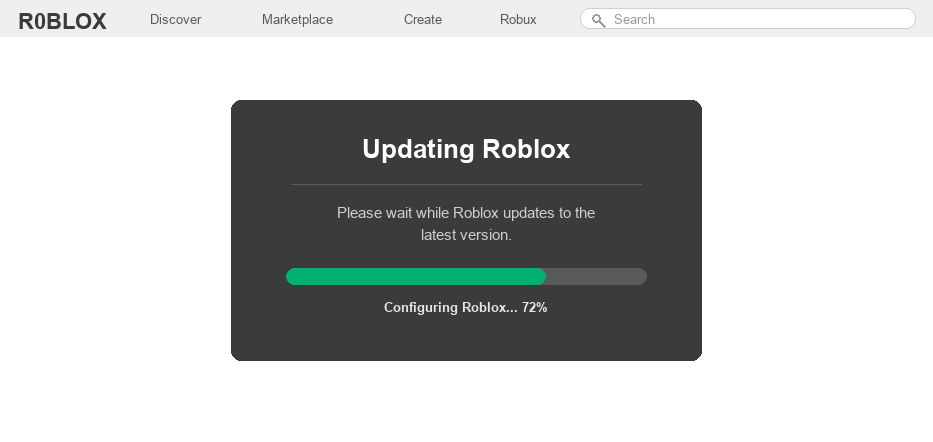
Roblox ships updates almost every week, adding new features, fixing bugs, and patching security holes. Running the newest version is the only way to make sure your games load and behave the way the developers intended.
On most platforms Roblox updates itself quietly in the background, so you may never have to lift a finger. The desktop app, for example, checks for a new version every time you launch a game.
But sometimes an update gets stuck, or an app store does not grab the latest build automatically. When that happens you have to update Roblox by hand, and the steps are a little different on each device.
Skipping an update for too long is the number one reason players suddenly cannot join games at all. An out-of-date client simply will not connect to current servers.
Well, whether you are on a PC, a phone, a tablet, or an Xbox, find your device below and follow the matching steps to get fully up to date.
The Quick Answer
On PC and Mac, Roblox updates itself automatically every time you open a game, so just launch any experience and let it patch. On mobile and Xbox, you update through the app store like any other app. If you keep playing on an old version, you will eventually run into Error Code 280, which blocks you from joining until you update.
How to Update Roblox on Every Device
1
Windows (desktop app)
The standalone Roblox app for Windows updates itself, you just have to trigger it.
– Open Roblox and log in to your account
– Click Play on any game from the website or the app
– Roblox checks its version and downloads the latest update before the game loads
– If nothing happens, close Roblox fully and relaunch it to force the check
2
Windows (Microsoft Store version)
If you installed Roblox from the Microsoft Store, updates come through the Store instead.
– Open the Microsoft Store and click the Library icon in the bottom-left
– Click “Get updates” and let it scan your installed apps
– If Roblox shows an update, let it finish, then relaunch the app
3
Mac
Mac works just like the Windows desktop app and patches itself on launch.
– Open the Roblox app and sign in
– Press Play on any experience
– The app updates to the newest version automatically before the game starts
4
iPhone and iPad
On iOS you update Roblox through the App Store.
– Open the App Store and tap your profile icon in the top-right corner
– Scroll down to the list of available updates
– Tap Update next to Roblox, or tap Update All
5
Android
On Android, the Google Play Store handles the update.
– Open the Google Play Store and search for Roblox
– If an update is ready, you will see an Update button instead of Open
– Tap Update and wait for it to finish installing
6
Xbox
Xbox usually updates apps on its own, but you can push it manually too.
– Press the Xbox button, go to My games & apps, then See all
– Open Manage, then Updates, and look for Roblox in the list
– Select it to update, then relaunch the app
If you are still stuck on an old version after all this, feel free to message us and we will help you sort it out.
Updating Roblox FAQ
How often does Roblox update?
Roblox releases updates roughly every week. Most are small bug fixes and security patches, but you should still install them so you never fall behind the version the servers expect.
Why won’t Roblox update or why is it stuck?
A stuck update is almost always a connection, storage, or cache problem. Restart your device, make sure you have free storage and a stable internet connection, then try the update again.
Will I lose my progress or items if I update?
No. Your account, progress, and items live on Roblox servers, not on your device. Updating only refreshes the app itself, so nothing you own is ever at risk.
How do I know if I am on the latest version?
The easiest test is to simply join a game. If it loads normally you are up to date, and if you are blocked with a version error then an update is waiting for you.
Why does Roblox say I need to update before I can play?
That message means your client is older than the current server version, which usually shows up as Error Code 280. Updating the app clears it right away.
Update still not working?
If the update keeps failing, try uninstalling and reinstalling Roblox to grab a clean copy of the latest version. You can also check status.roblox.com for outages, or contact Roblox Support if the problem sticks around.