Roblox Help Guide
Uninstall and Reinstall Roblox
“Will I lose my stuff if I uninstall Roblox? No, and here is how to reinstall it.”
Last Updated: August 2026
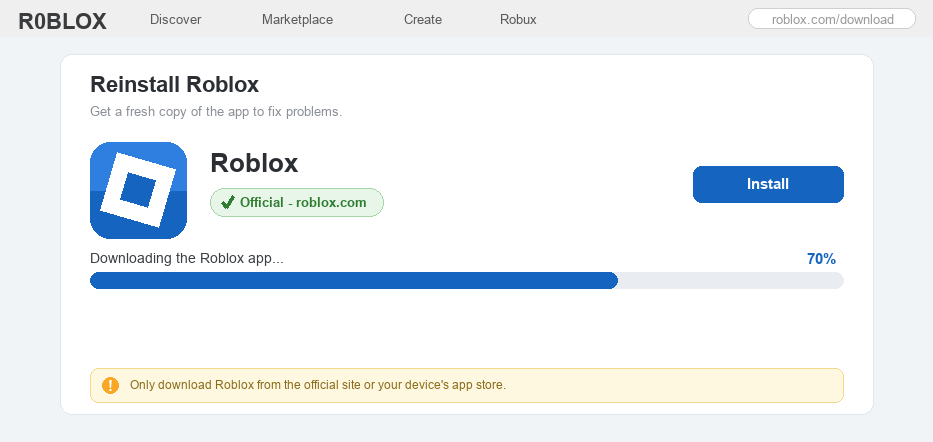
If Roblox keeps crashing, will not open, or gets stuck on an update, a fresh reinstall is one of the best fixes. It clears out old, broken files and gives you a clean copy of the app.
First, the question almost everyone asks: no, uninstalling Roblox does not delete your account, Robux, or items.
All of that is saved to your account on Roblox, not on the app. When you reinstall and log back in, everything is exactly where you left it.
The steps are a little different on each device, so we will cover Windows, Mac, phones and tablets, and Xbox.
Well, here is how to safely uninstall and reinstall Roblox, step by step, plus how to know if you even need to.
The Quick Answer
To uninstall Roblox, remove the app the normal way for your device: Windows uses Settings > Apps, Mac drags it to the Trash, phones and tablets long-press the icon and delete, and Xbox uninstalls it from My games & apps. Then reinstall it from the official roblox.com or your device’s app store and log back in. You will not lose your account, Robux, or items, because those are saved to your account, not the app.
Will I lose my account or Robux? No.
This worries a lot of players, so here is the calm truth. Uninstalling only removes the app from your device. Your account, Robux, items, avatar, friends, and game progress all live on Roblox’s servers. They stay safe while the app is gone, and they come right back the moment you reinstall and sign in. The only way to truly lose an account is to officially ask Roblox to delete it.
How to Uninstall and Reinstall Roblox
1
Try the quick fixes first (you might not need to reinstall)
A full reinstall is the last resort, so it is worth trying the easy fixes before you remove anything.
– Close Roblox completely and restart your device, then try again; this alone fixes a lot of glitches
– Make sure the app is current by following our guide on how to update Roblox
– Still acting up? Clear the Roblox cache to wipe temporary files, which often fixes crashing and lag without a reinstall
 Uninstalling only removes the app. Your account, Robux, items, avatar, friends, and progress are all kept, because they are saved to your account, not the app.
2
Uninstall and reinstall on Windows (PC)
On a computer, it helps to close Roblox all the way and then clear out any leftover files for a truly clean start.
– Press Ctrl + Shift + Esc to open Task Manager, find any Roblox tasks, and click End task so nothing is still running
– Press Win + I for Settings, go to Apps > Installed apps, find Roblox, click the three dots, and choose Uninstall
– For a deep clean, press Win + R, type %localappdata%, press Enter, and delete any leftover Roblox folder
– Restart the PC, go to roblox.com, log in, open any game, and press Play; it downloads the free installer, which you then run
3
Uninstall and reinstall on a Mac
The Mac steps are short and simple, and you reinstall just by playing a game.
– Quit Roblox fully (right-click it in the Dock and choose Quit if it is open)
– Open Applications in Finder, drag Roblox to the Trash, then empty the Trash
– To reinstall, go to roblox.com, log in, press Play on a game, and follow the prompt to install the app again
4
Uninstall and reinstall on a phone or tablet
Phones and tablets are the easiest, because the app store handles everything for you.
– iPhone or iPad: press and hold the Roblox icon, tap Remove App, then Delete App, and reinstall it from the App Store
– Android: long-press the Roblox icon and tap Uninstall (or open Settings > Apps > Roblox > Uninstall), then reinstall from the Google Play Store
– On a Chromebook, it works just like Android: uninstall the app, then reinstall it from the Play Store
5
Uninstall and reinstall on Xbox
On Xbox you manage Roblox like any other game from your library.
– Open My games & apps, highlight Roblox, and press the Menu button on your controller
– Choose Manage game & add-ons (or Uninstall) and confirm to remove it
– To reinstall, open the Microsoft Store on the console, search for Roblox, and select Install
6
Reinstall safely, and what to do if it still will not work
The last step is the most important one for staying safe, so do not skip it.
– Only ever get Roblox from the official roblox.com or your device’s app store; skip any “free Roblox download” site, which can carry viruses or steal your account
– If you still see problems after reinstalling, it may be a Roblox outage or an error code, like error code 280, rather than the app itself
– Reinstalling is free and safe, but if you are on a shared or family device, it is kind to ask a parent before installing apps, and feel free to message us if you get stuck
Uninstall and Reinstall Roblox FAQ
How do you uninstall Roblox?
Remove the app the normal way for your device. On Windows use Settings > Apps > Installed apps > Roblox > Uninstall; on Mac drag Roblox from Applications to the Trash; on a phone or tablet long-press the icon and delete it; and on Xbox uninstall it from My games & apps.
Will I lose my account, Robux, or items if I uninstall Roblox?
No. Uninstalling only removes the app from your device. Your account, Robux, items, avatar, friends, and progress are all saved to your account on Roblox’s servers. When you reinstall and log back in, everything is still there.
How do you reinstall Roblox after uninstalling?
On a computer, go to roblox.com, log in, and press Play on any game to download the free installer. On a phone, tablet, Chromebook, or Xbox, reinstall it from your device’s app store (App Store, Google Play, or the Microsoft Store), then sign back in.
Does uninstalling and reinstalling Roblox fix crashing and errors?
Often yes. A fresh install replaces old, broken files that can cause crashing, freezing, or the app not opening. Before a full reinstall, it is worth trying a restart, an update, and clearing the cache, which fix many problems on their own.
Do I need to uninstall before I reinstall Roblox?
Usually not on a phone, tablet, or Xbox, because the app store update covers it. But for stubborn problems on a Windows PC, a full uninstall plus deleting the leftover Roblox folder gives the cleanest result.
Where should I download Roblox from?
Only from the official roblox.com or your device’s app store. Never use a “free Roblox download” site you find in a video or an ad, because those are not made by Roblox and can carry malware or try to steal your password. If you are unsure, ask a parent.
The bottom line
Uninstalling Roblox is safe, and it will not touch your account, Robux, or items, so a clean reinstall is a great fix when the app crashes or will not open. Remove the app the normal way for your device, then reinstall it only from the official roblox.com or your app store and log back in. Try a restart, an update, and clearing the cache first, and ask a parent before installing apps on a shared device. For the official steps, see Roblox’s own Help Center.