Roblox Help Guide
Make a Private Server
“Play with just your friends, with no random strangers joining.”
Last Updated: August 2026
Want to play Roblox with just your friends, without random strangers joining? A private server is exactly what you need.
A private server is your own personal copy of a game that only the people you invite can join. They used to be called VIP Servers.
They are great for playing with friends, filming videos, practising a game, or just having a calm space away from busy public servers.
Some games let you make one for free, others charge a small monthly fee in Robux, and a few do not offer them at all, because it is up to each game’s creator.
Well, here is exactly how to make a private server on Roblox, how to invite your friends, and how to manage or cancel it.
The Quick Answer
Open the game you want, scroll down to the Servers section, and look for Private Servers. If the game has them turned on, press Create Private Server, give it a name, and confirm. Some are free and some cost a monthly fee in Robux, set by the game’s creator. Once it is made, you can let friends join or share an invite link. Members of Roblox Plus get free private servers in supported games.
How to Make a Private Server on Roblox
1
Pick a game that has private servers
Private servers are turned on by each game’s creator, so the first thing to know is that not every game has them.
– Open the game you want to play, because most of the popular roleplay and simulator games do offer private servers
– If a game has none, you simply will not see a Private Servers option, and that is the creator’s choice
– A private server is one of the safest ways to play, since it is just you and people you choose (you can also control who joins you in public games)
2
Open the game’s Servers section
Every game’s page has a Servers area, and that is where private servers live.
– On the game’s main page, scroll down past the description to the Servers section near the bottom
– This works the same way on the Roblox app and on the website
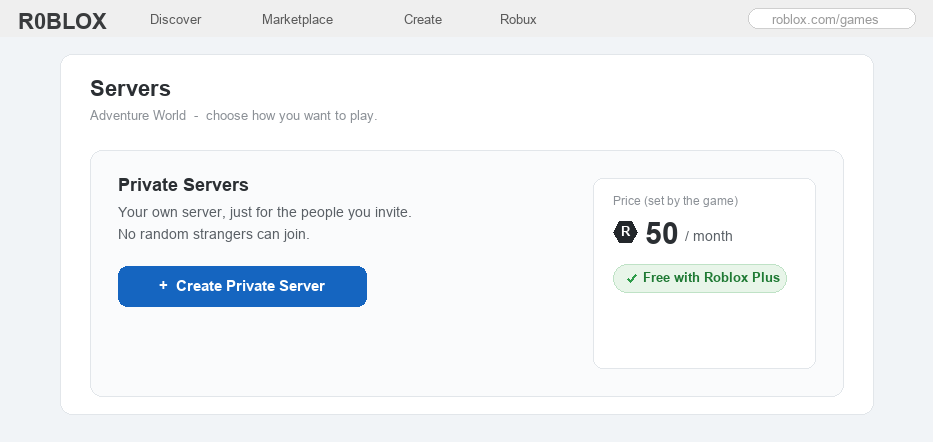
– If private servers are available, you will see a section called Private Servers with a button to make one
3
Create your server and name it
Now you can make the server itself, which only takes a few taps.
– Press Create Private Server, then type a name that is easy for you and your friends to remember
– You will see the price, set by the game’s creator: it might be free, or a monthly fee in Robux
– Read the short subscription note, press Buy Now to finish, and your new server appears in the Private Servers list
 Once your server is made, you can rename it, invite friends, copy a share link, and turn the monthly renewal on or off.
4
Invite your friends to join
A private server is no fun empty, so the next step is letting your friends in.
– Open your new server’s settings and turn on Friends Allowed, so everyone on your friends list can join straight from the game page
– You can also invite certain people by username, or copy an invite link and send it to friends
– Only share that link with people you trust, because anyone who has it can join and it cannot be locked with a password
5
Manage, renew, or cancel your server
If your server costs Robux, it is a monthly subscription, so it helps to know how to control it.
– A paid server charges again on the same date each month to stay active
– To stop it, open the server and tap the green Active button next to Subscription Status; you keep the server until the time you already paid for runs out
– You can turn renewal back on at any time, and a free server simply stays without any charge
6
A cheaper option and a safety note
Before you buy, there are two things worth knowing about money and safety.
– If you want private servers in lots of games, a monthly membership called Roblox Plus includes free private servers in supported games, which can be cheaper than paying for several (it replaced the old Premium membership)
– Because a paid server charges every month, always ask a parent first, and check how Robux and spending work
– A private server is a friendly, safer way to play, but never share the invite link with strangers (here is more on keeping Roblox safe)
Private Server FAQ
How do you make a private server on Roblox?
Open the game, scroll to the Servers section, and if Private Servers is available, press Create Private Server, give it a name, and confirm with Buy Now. Some are free and some cost a monthly Robux fee that is set by the game’s creator.
How much does a private server cost?
It depends entirely on the game, because each creator sets the price. Some are free, while others charge a monthly fee in Robux that can be anywhere from a small amount to a few hundred. The price, and whether private servers exist at all, is shown on the game’s page.
Are private servers free?
Some are and some are not, because free is up to the game’s creator. On top of that, members of Roblox Plus, a paid monthly membership, get free private servers across supported games, so a Plus member can often make one at no extra cost.
How do I let my friends join my private server?
In the server’s settings, turn on Friends Allowed so your friends can join from the game page, invite specific players by username, or copy the invite link and send it to them. Only share the link with people you trust, since anyone who has it can join.
Do I have to pay every month for a private server?
If the server costs Robux, yes, it charges on the same date each month to stay active. You can cancel the monthly charge at any time and keep the server until the period you paid for ends. Free servers and Roblox Plus servers do not charge you.
Why can’t I make a private server in some games?
Because private servers are a feature each game’s creator chooses to turn on. If a game does not show a Private Servers option, the creator has not enabled it, and there is no way to force one to appear.
The bottom line
A private server is your own copy of a game for you and the friends you invite. Open the game’s Servers section, press Create Private Server, name it, and confirm; some are free and some cost a monthly Robux fee. Invite friends or share a link (only with people you trust), and remember that Roblox Plus includes free private servers. For the full official details, see Roblox’s own Help Center.