Roblox Help Guide
Turn Off Joins on Roblox
“Stop people from joining you in games with one privacy setting.”
Last Updated: August 2026
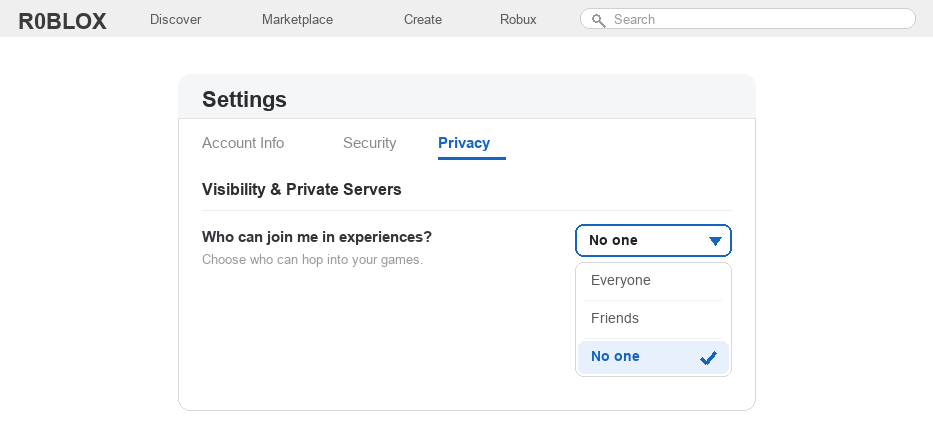
By default, your friends and sometimes other players can tap a Join button to hop into whatever you are playing on Roblox. That is handy, but sometimes you just want to play on your own.
Turning off joins hides that Join button, so nobody can follow you into a game unless you let them. It is one of the easiest privacy settings to use.
You change it in one spot in your privacy menu, and it instantly works everywhere you log in.
You can also choose a softer option that lets only your friends join, instead of blocking everyone.
Well, here is how to turn joins off on PC and mobile, and how to pick the option that fits you best.
The Quick Answer
To turn off joins on Roblox, open Settings, go to the Privacy tab, find Who can join me in experiences?, and set it to No one. That removes the Join button from your profile. Prefer to play with friends only? Pick Friends instead.
How to Turn Off Joins on Roblox
1
Open your privacy settings
The setting that controls joins lives in your privacy menu.
– Click the gear icon, or the three-dot menu on mobile, and open Settings
– Choose the Privacy tab
– Scroll to the Visibility and Private Servers section
2
Find Who can join me in experiences
This one setting decides who is allowed to jump into your games.
– Look for the line that says Who can join me in experiences
– You will see a dropdown menu right next to it
– It usually starts on Everyone or Friends
3
Switch it to No one
Turning joins fully off takes a single tap.
– Open the dropdown and choose No one
– The Join button on your profile disappears for everyone, even friends
– There is no Save button to press, the change happens right away
4
Or choose Friends instead of No one
If you still want to play with friends, you do not have to block everyone.
– Choose Friends in the same dropdown
– Now only people on your friends list can join you
– This is a nice middle option between Everyone and No one
5
Check it worked on every device
Your choice follows you everywhere, so you only set it once.
– The setting syncs across PC, phone, and console automatically
– Open your own profile to confirm the Join button is gone or limited
– You can switch it back any time you want to play with others
6
Why turning off joins is a smart move
Turning joins off is a simple way to stay in control of who plays with you.
– It stops strangers from following you into a game uninvited
– Pair it with appearing offline for even more privacy
– A parent can help set this and keep it locked for younger players
If the dropdown is greyed out, a parent control may be managing it, and you can feel free to message us if you need a hand.
Turning Off Joins on Roblox FAQ
How do I turn off joins on Roblox?
Open Settings, go to Privacy, find “Who can join me in experiences?”, and set it to No one. That removes the Join button from your profile for everyone.
Where is the join setting on Roblox?
It is in Settings under the Privacy tab, in the Visibility and Private Servers section. The exact line is “Who can join me in experiences?”
What does turning off joins actually do?
It hides the Join button on your profile, so nobody can hop into the game you are playing. Your friends cannot join you either until you turn it back on.
Can I let only my friends join me?
Yes. Instead of No one, choose Friends in the same dropdown. Then only people on your friends list can join your game, and strangers cannot.
Does turning off joins work on every device?
Yes. The setting syncs across PC, mobile, and console, so you only need to change it once and it applies everywhere you log in.
Why can’t I change the join setting?
If the dropdown is locked or greyed out, a parental control is probably managing your account’s privacy. A parent or guardian can adjust it from the parent settings.
Want the official rules?
Roblox covers privacy and parental controls in its Roblox Support help center. Turning joins off is always reversible, so you can keep it on for solo play and switch it back when you want company.