Roblox Help Guide
Make a Group on Roblox
“Create your own community, pick who joins, and share Robux.”
Last Updated: August 2026
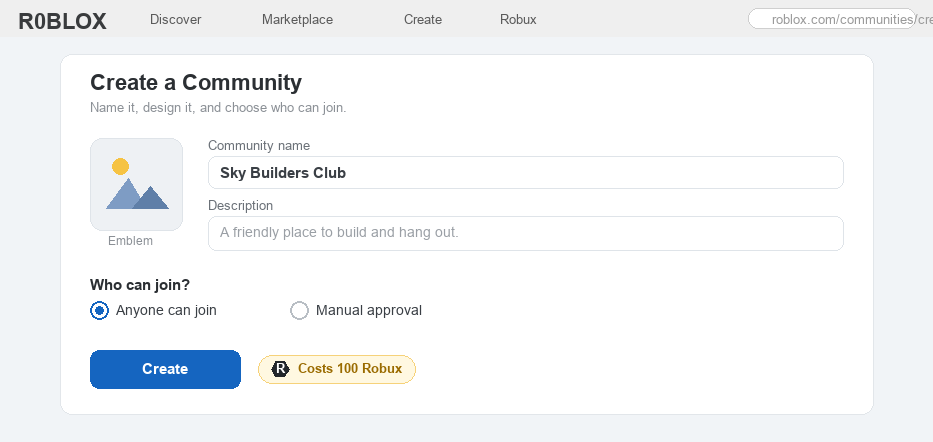
Making your own group is one of the most fun things you can do on Roblox. It gives you a place to gather your friends, fans, or building team in one spot.
A group has its own name, emblem, and group wall where members can post. You can even rank members into different roles.
One thing to know first: making a group costs a one-time 100 Robux. After that, you do not pay again for that group.
If your group runs a game, it can also earn Robux into a shared pot called the group funds, which the owner can share with members.
Well, here is exactly how to make a group on Roblox, set it up, handle group funds, and leave a group if you ever want to.
The Quick Answer
To make a group on Roblox, open the Create page, choose Communities, and pick Create a Community. Give it a name, a description, and an emblem, choose who can join, then press Create. It costs a one-time 100 Robux, and you can make up to 100 of your own. Once your group earns Robux from a group game or items, the owner can pay it out to members. To leave a group, open its page, tap the three-dot menu, and choose Leave.
Heads up: “groups” are now called “Communities”
Roblox renamed Groups to Communities, so you will see both words around the site and in this guide. They are the exact same thing and work the same way, so do not worry if a button says “Community” when you searched for “group.” Everything below still applies.
How to Make a Group on Roblox
1
Decide what your group is for
First, think about why you want a group, because it shapes how you set it up.
– A group is a place where players join together, post on the group wall, and share a name and emblem
– It might be a fan club, a team for a game you are building, or just a spot for your friends
– Making one costs a one-time 100 Robux, so it is worth planning before you spend
2
Open the Create page
You make a group from the Create area, and it works on both the website and the app.
– On the website, open the Create menu, choose Communities, then Create a Community
– In the Roblox app, tap the More “…” button, then Create
– Already a member of some groups? You can find them and make new ones from the same Communities area (here is how to join a group)
3
Fill in the details and create it
Now you give your community its look and decide who is allowed in.
– Add a Name, a short Description, and an Emblem (the little icon that stands for your group)
– Under “Who can join?”, pick Anyone for an open group, or Manual approval if you want to approve each member yourself (the safer choice)
– Press Create; a one-time 100 Robux is taken from your account, and you can make up to 100 communities of your own
4
Set up roles and invite members
Roles let you give members different jobs and ranks, like Member, Helper, or Admin.
– Open your community, go to its settings, and add the roles you want (adding extra roles is now free)
– Set what each role is allowed to do, then rank members up or down as your group grows
– Invite your friends to join so your community is not empty on day one
 Group funds are a shared pot of Robux your community earns. The owner can pay members from it as a one-time payout or a recurring share, and new members become eligible after about 14 days.
5
Understand group funds and payouts
If your community makes Robux, it goes into a shared pot called the group funds.
– Money comes in when a group game sells a game pass or items, and it lands in the group funds, not your personal account
– The owner (or a member you trust with permission) can pay it out to members, either as a one-time payout or a recurring share
– New members usually have to be in the group for about 14 days before they can receive a payout, which helps stop cheating
6
How to leave a group, and stay safe
Leaving a group is quick, and a little safety goes a long way when you run or join one.
– To leave, open the community’s page, tap the three-dot More menu, and choose Leave; note that the owner cannot leave their own group
– Only join or run friendly groups, and remember the group wall can be seen by other members, so never share your real name, age, or where you live
– Ask a parent before spending the 100 Robux, and read more about staying safe on Roblox
Roblox Groups FAQ
How much does it cost to make a group on Roblox?
It costs a one-time 100 Robux for each community you make, and you can create up to 100 of your own. You only pay that once per group, not every month.
How do you make a group on Roblox?
Open the Create page, choose Communities, then Create a Community. Add a name, description, and emblem, choose who can join, and press Create. The 100 Robux fee is charged when you finish.
Are groups free on Roblox?
No, creating a group costs 100 Robux. Joining most groups is free, though, and adding extra roles to your group became free in 2026.
How do group funds work?
Group games and items earn Robux into a shared group fund, separate from your personal balance. The owner can pay it out to members as a one-time payout or a recurring share, and new members wait about 14 days before they can be paid.
How do I leave a group on Roblox?
Open the community’s page, tap the three-dot More menu, and choose Leave. The one exception is the owner, who cannot leave their own group.
What is the difference between a group and a community?
They are the same thing. Roblox renamed Groups to Communities, so you might see either word, but the features and steps work exactly the same.
The bottom line
Making a group on Roblox costs a one-time 100 Robux. Open the Create page, choose Communities, add a name, description, and emblem, pick who can join, and press Create. After that you can add roles, invite friends, and (if your group earns Robux) pay it out to members from the group funds. To leave a group, use the three-dot menu on its page. Pick friendly group names, keep your personal details private, and ask a parent before spending Robux. For the official steps, see Roblox’s own Help Center.