Roblox Help Guide
Unblock Someone on Roblox
“Bring back someone you blocked, on PC or mobile, in a few taps.”
Last Updated: August 2026
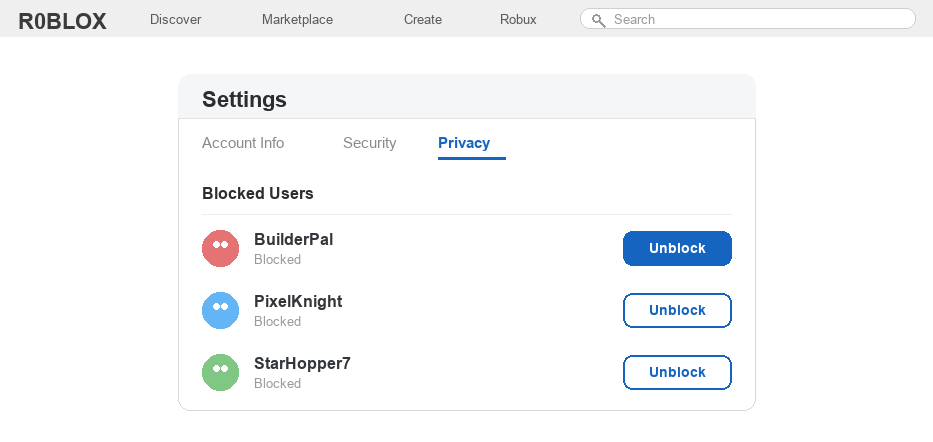
Blocking someone on Roblox is a handy way to stop messages you do not want. Sometimes, though, you change your mind and want to talk to a friend again.
Maybe you blocked the wrong person, or you and a friend made up after a falling out. Either way, unblocking them only takes a few seconds.
Everyone you have blocked sits in one tidy list inside your privacy settings, and each name has its own Unblock button.
You can also unblock someone straight from their profile or from the player list while you are in a game.
Well, here is how to do it on every device, plus a few friendly reminders about when it is smart to leave someone blocked.
The Quick Answer
To unblock someone on Roblox, open Settings, go to the Privacy tab, scroll to Blocked Users, and tap Unblock next to their name. You can also open the person’s profile, tap the three-dot menu, and choose Unblock.
How to Unblock Someone on Roblox
1
Open your privacy settings
Everyone you have blocked lives in one place, your privacy settings.
– Click the gear icon, or the three-dot menu on mobile, and open Settings
– Choose the Privacy tab
– Scroll down to the Blocked Users section
2
Find the person on your blocked list
Your blocked list shows everyone you have blocked, so you just need to spot the right name.
– On mobile, tap Show to open the full list
– Look through the usernames until you find the person
– Take a moment to make sure it is really someone you want to talk to again
3
Tap the Unblock button
Unblocking takes one tap and happens right away.
– Click or tap the Unblock button next to their name
– If a Save button pops up, tap it to lock in the change
– They can now message, friend, or join your games again
4
Unblock straight from a profile
You can also unblock someone without digging through settings.
– Open the person’s profile page
– Tap the three-dot menu in the corner
– Choose Unblock from the list
5
Unblock while you are in a game
If you are already playing, you can unblock from the player list.
– Open the in-game player list
– Tap the player’s name
– Pick Unblock
6
When it is smart to keep someone blocked
Blocking is a safety tool, so it is completely okay to leave someone blocked.
– If a person was mean or made you uncomfortable, you do not have to unblock them
– Only unblock people you trust and actually want to hear from
– If someone keeps bothering you, tell a parent or trusted adult, report them, or appear offline so they cannot see you
If the Unblock button will not work, your account may have a PIN turned on, and you can feel free to message us if you get stuck.
Unblocking on Roblox FAQ
How do I unblock someone on Roblox?
Open Settings, go to the Privacy tab, scroll to Blocked Users, and tap Unblock next to their name. You can also unblock someone from their profile’s three-dot menu.
Where is my blocked list on Roblox?
It is in Settings under the Privacy tab, in a section called Blocked Users. On mobile you may need to tap Show to see the whole list.
Why can’t I unblock someone?
If the Unblock button does nothing, your account probably has a PIN turned on for safety. Turn the PIN off for a moment, unblock the person, then turn it back on.
What happens when I unblock someone?
They can message you, send a friend request, and join your games again, just like before you blocked them. You can always block them again if you change your mind.
Can I unblock someone who is not my friend?
Yes. Blocking and unblocking work for any player, friend or not. Unblocking simply removes them from your blocked list.
Is it okay to keep someone blocked?
Absolutely. Blocking is there to keep you comfortable and safe, so you never have to unblock anyone. If a player was unkind, it is smart to leave them blocked and tell a trusted adult.
Want the official rules?
Roblox explains blocking, unblocking, and parental controls in its Roblox Support help center. Remember that blocking is always your choice, and a parent can help you manage your blocked list any time.